USER MANUAL · TJ1GD REMOTE X6100
TJ1GD Remote X6100 – manual
Remote operation of the Xiegu X6100 from an Android phone and a Windows PC: receive with audio and spectrum, transmit, FT8, CW, filters – and away from home through a gateway and Tailscale.
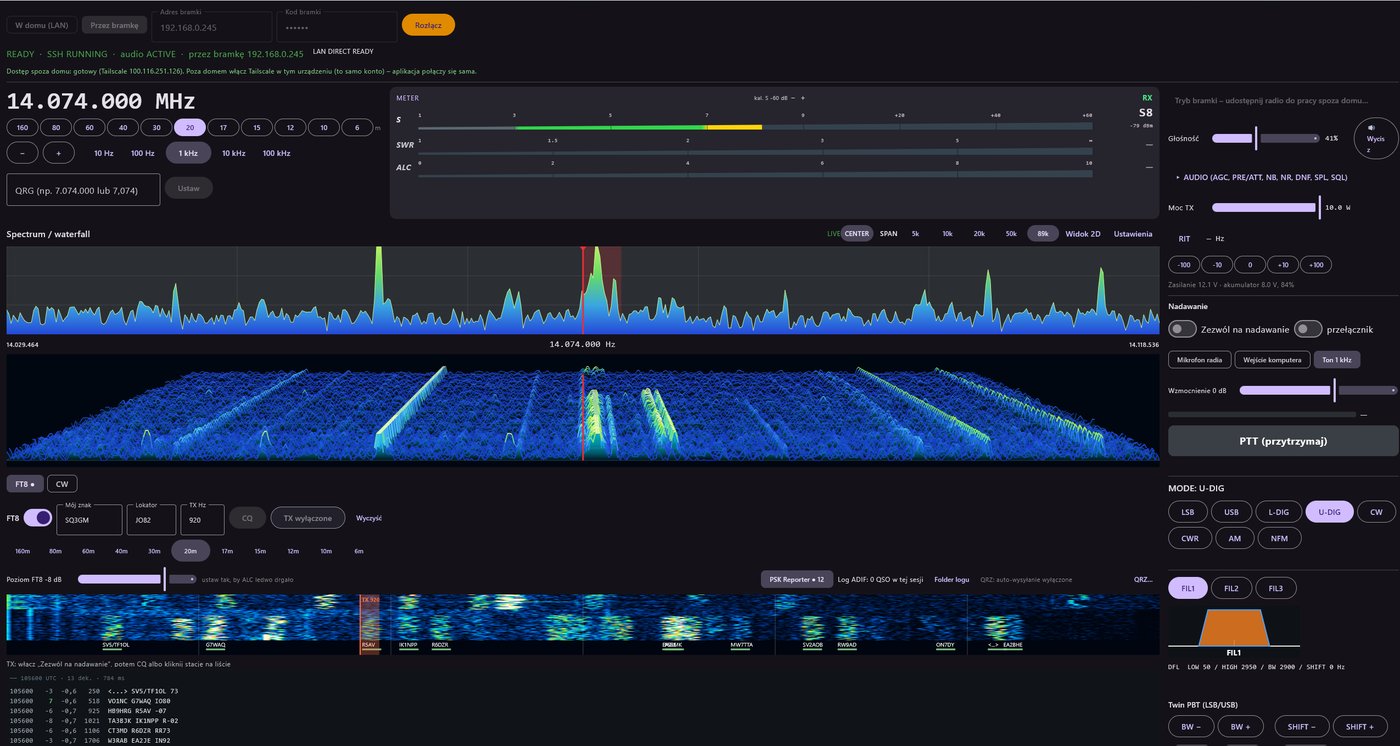
Three ways to connect
1. At home (LAN)Phone or PC on the same Wi-Fi as the radio. The simplest way – just the radio's address and password.
2. Raspberry Pi gatewayA small Raspberry Pi next to the radio makes it reachable from anywhere. Ready-made card, set up from the phone.
3. Windows PC gatewayThe same app on a PC next to the radio works as the gateway. The PC must stay on.
Away from home you always connect through a gateway. The free Tailscale app provides the path over the internet – no router settings, no public IP address.
What you need
- A Xiegu X6100 connected to your home Wi-Fi.
- The radio's SSH password (user
root) – the app starts its helper programs on the radio. - The TJ1GD Remote X6100 app on an Android phone or a Windows PC – downloads.
- For use away from home: a gateway (Raspberry Pi 4/5 or a Windows PC) and a free Tailscale account.
Chapters
Connecting at homeRadio IP address, SSH password, connection states.
Gateway and TailscaleTailscale account, installation, sign-in, remote use.
Windows PC as gatewayInstaller, gateway mode, Windows firewall, autostart.
Raspberry Pi as gatewayWriting the card, first start, Wi-Fi, diagnostics.
FT8Receive, reply, CQ, ADIF log, PSK Reporter, QRZ.com.
CWDecoder, keyboard sending, macros, why U-DIG when transmitting.
Filters and audioFIL1–3, Twin PBT, passband readback, AGC, NB, NR, DNF.
DownloadsAndroid app, Windows installer, Raspberry Pi card image.
TransmittingThe Zezwól na nadawanie (allow transmit) switch is always off when the app starts. Without it the app will not transmit at all – no PTT, FT8, CW or tuner TUNE. If the connection drops, the radio stops transmitting by itself.
LabelsThe app's screens are in Polish; this manual quotes the on-screen labels exactly and explains them.