USER MANUAL · TJ1GD REMOTE X6100
Connecting at home (LAN)
The phone or PC connects straight to the radio on the same home network. The simplest way, and the starting point for everything else.
What to prepare
- The radio on your home Wi-Fi. The X6100 must be on the same network (same router) as the phone or PC.
- The radio's IP address – e.g.
192.168.0.220. - The radio's SSH password (user
root).
Finding the radio's IP address
- On the radio: in the radio's Wi-Fi settings, once connected, the X6100 shows its IP address. Write it down.
- On the router: log in to the router (usually
192.168.0.1or192.168.1.1) and open the list of connected devices (DHCP, “Devices”, “Clients”). The radio usually appears as x6100 or similar to “xiegu”.
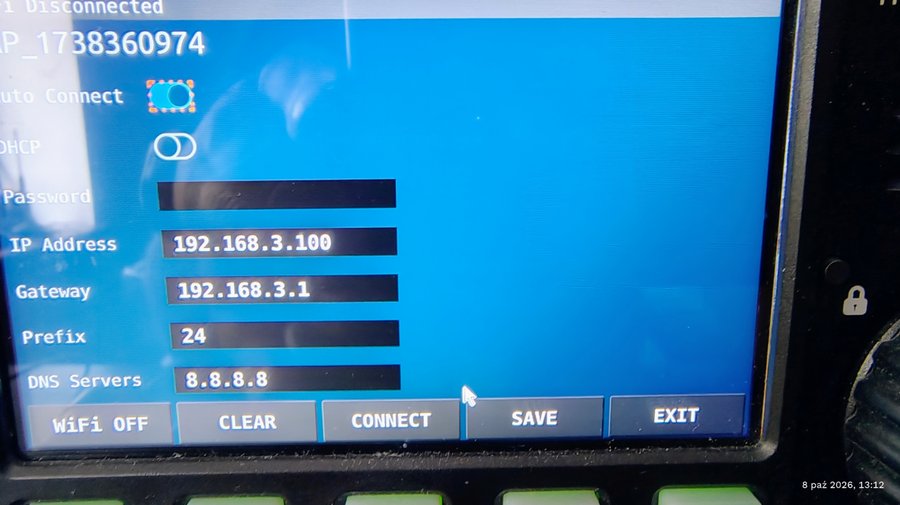
SSH password
This is the password of the root user on the radio. A new radio has the factory password 123, the same on every X6100 – use it the first time, then change it. The app does not store it – you type it each time you connect “at home”. (A gateway stores it, so with a gateway you enter it only once.)
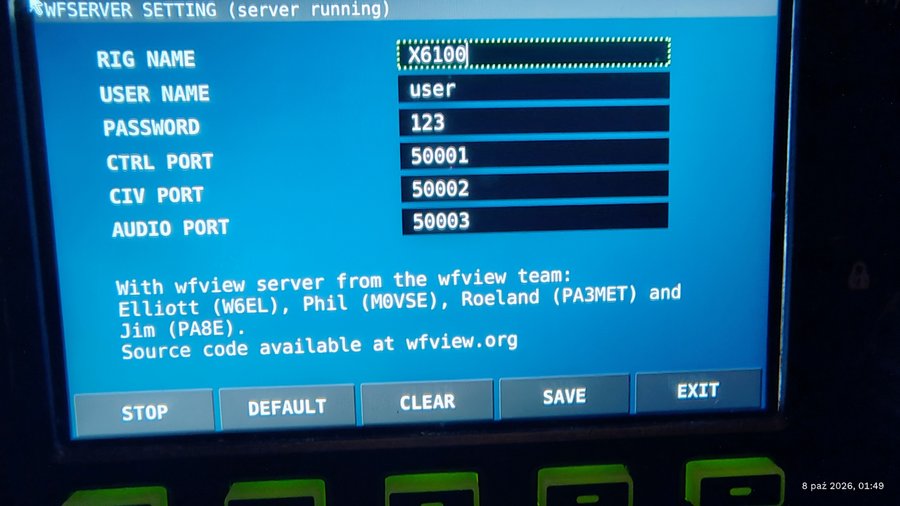
WFSERVER on the radio
The app uses the network server built into the radio (wfview server). The radio's WFSERVER SETTING menu should show (server running). Keep the defaults: USER NAME user, PASSWORD 123, ports 50001/50002/50003 – the app uses exactly these. If you changed anything, restore it with DEFAULT and SAVE.
Step by step
- Start TJ1GD Remote X6100. On the phone open the Radio tab.
- Choose W domu (LAN) (at home).
- Enter the radio's IP in Adres radia (LAN). The app remembers it.
- Enter the password in Hasło SSH (root).
- Click Połącz z Xiegu X6100 (connect). The first connection takes 10–20 seconds while the app uploads and starts its helper programs on the radio.

When connected the button turns into an orange Rozłącz (disconnect). After an error the same button reads Połącz ponownie (connect again).
The status line
The line under the fields reads PHASE · SSH state · audio ACTIVE/—:
| Entry | Meaning |
|---|---|
| READY | Connected – the radio answers, audio and spectrum are flowing. |
| CONNECTING | Connecting, uploading helper programs (SSH: CONNECTING, UPLOADING). |
| IDLE | Not connected. |
| ERROR | Error – the reason is shown next to it. Fix it and click Połącz ponownie. |
| DISCONNECTING | Disconnecting. |
| audio ACTIVE | Radio audio reaches the app. |
Common problems
| Message or symptom | What to do |
|---|---|
| Long connecting, then an SSH error | Check the IP address and password. Make sure the phone is on home Wi-Fi, not mobile data. |
| “Nie znaleziono adresu IPv4 w sieci lokalnej” (no IPv4 address on the local network) | The device has no home-network address – connect it to Wi-Fi or a cable. |
| “Nie można otworzyć portu audio UDP 50100” (cannot open audio port) | Another program uses the port – close a second copy of TJ1GD Remote X6100. |
| “OEM PRELOAD nie jest aktywny… Wymagany jest pełny reboot X6100.” | Switch the radio off and on, then connect again. |
| “PulseAudio na X6100 nie jest jeszcze gotowe.” (radio audio not ready yet) | The radio is still starting – wait a moment and connect again. |
| Windows: READY, but no audio and no spectrum | The Windows firewall blocks audio (UDP 50100) and spectrum (UDP 50102). Open Tryb bramki… and click Zezwól w zaporze – see Windows firewall. |
Security: change the root password
Easiest: in the app
After connecting with 123 the app shows a red warning and the Zmień hasło radia (change radio password) button. Click it, enter the new password twice (at least 8 characters, no accented letters, no “:”) and click Zmień hasło. The app changes the password on the radio and checks the new one works. Later you change it the same way – Zmień hasło radia… is shown whenever you're connected in “W domu” mode.
Do this before setting up a gateway – then you give the gateway the new password. Through a gateway the app only warns about the factory password; the change itself is done at home, in “W domu” mode.
Or from a PC (PowerShell)
Change the password once, from a PC on the home network:
- On a Windows PC open PowerShell (Start menu → type “PowerShell”).
- Type
ssh root@192.168.0.220(your radio's address) and press Enter. On the first connection confirm withyes. - Enter the current password (factory:
123). The radio's prompt appears. - Type
passwd, press Enter and enter a new, strong password twice (nothing is shown while typing). - Type
exit. Keep the new password safe – from now on it is the “SSH password” in the app and the gateway.
If a gateway is already set up, after changing the password open Konfiguracja bramki… (phone) or the gateway mode screen (Windows) and enter the new password.