USER MANUAL · TJ1GD REMOTE X6100
Windows PC as the gateway
TJ1GD Remote X6100 on a PC next to the radio can work as the gateway. Leave the PC on and connect from the phone – at home and away.
Installation
- Download the
X6100Remote.msiinstaller from Downloads. - Run it. Windows may show “Windows protected your PC” – click More info, then Run anyway.
- No administrator rights are needed. The program appears in the Start menu and on the desktop as TJ1GD Remote X6100.
- A newer installer replaces the older version; settings are kept.
For remote use also install Tailscale on this PC and sign in with your account.
Turning gateway mode on
- Start TJ1GD Remote X6100. Do not connect to the radio.
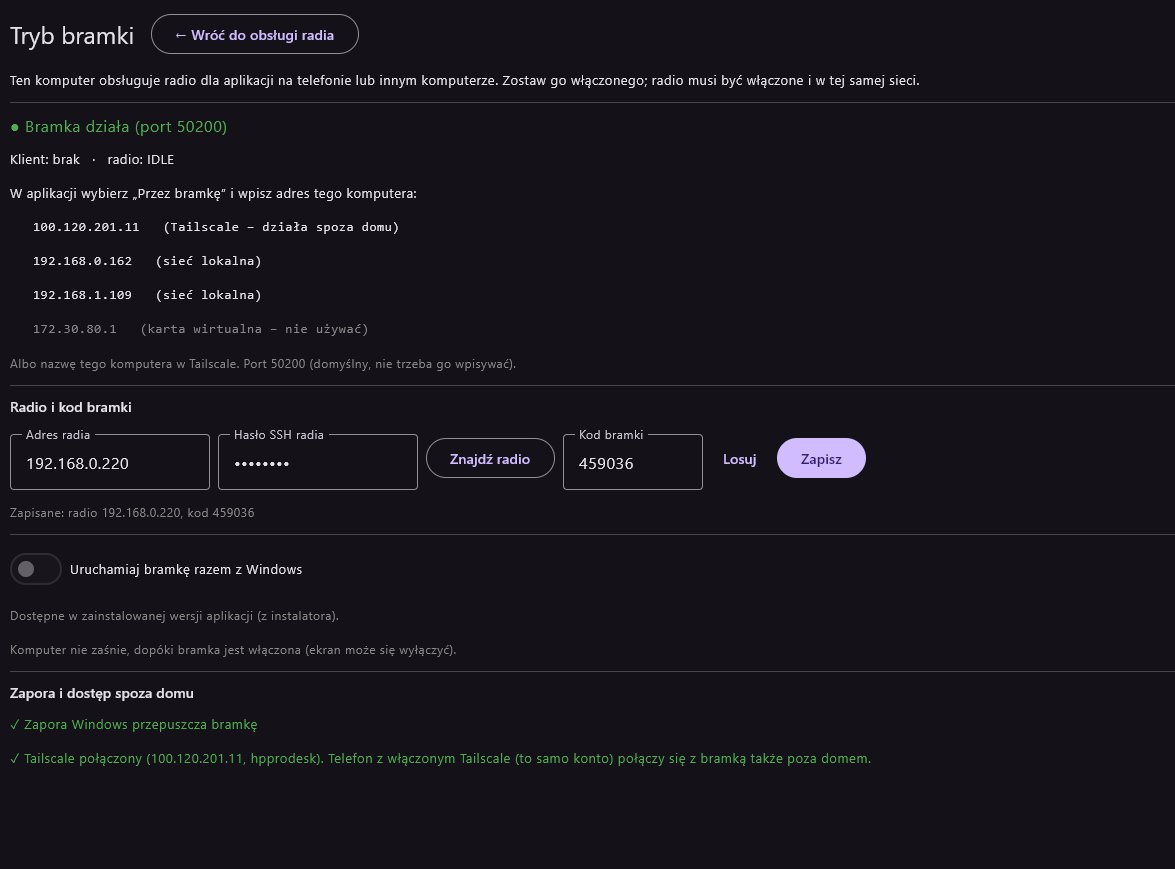
- Click on the right Tryb bramki – udostępnij radio do pracy spoza domu… (gateway mode).
- In Radio i kod bramki (radio and gateway code): enter Hasło SSH radia (already changed – not the factory 123), click Znajdź radio (the address fills in), click Losuj (random code) and Zapisz (save).
- In Zapora i dostęp spoza domu click Zezwól w zaporze (see below).
- Turn on Uruchamiaj bramkę razem z Windows if the gateway should start every time the PC starts.
What the screen shows
- ● Bramka działa (port 50200) – the gateway waits for connections.
- Klient – who is connected (phone address); radio – radio connection state (IDLE when nobody uses it).
- This PC's addresses: Tailscale – działa spoza domu (works away, 100.x.y.z), sieć lokalna (home network) and karta wirtualna – nie używać (virtual adapter – don't use).
- Zapisane: radio …, kod … – the code you enter on the phone.
While the gateway runs the PC does not go to sleep (the screen may turn off). Normal power settings return when the gateway stops.
Windows firewall
The Windows firewall blocks incoming connections by default. The gateway needs:
| Port | Purpose | From |
|---|---|---|
| TCP 50200 | app ↔ gateway connection | home network and Tailscale |
| UDP 50201 | “Znajdź bramkę” (find gateway) | home network |
| UDP 50100, 50102 | audio and spectrum from the radio | home network |
The Zezwól w zaporze button sets all of this at once:
- Click Zezwól w zaporze.
- Windows asks “Do you want to allow this app to make changes?” – click Yes.
- A green ✓ Zapora Windows przepuszcza bramkę (firewall lets the gateway through) appears.
The rules only open the home network and Tailscale (not the whole internet), and the button also removes block rules for this program if any were created earlier.
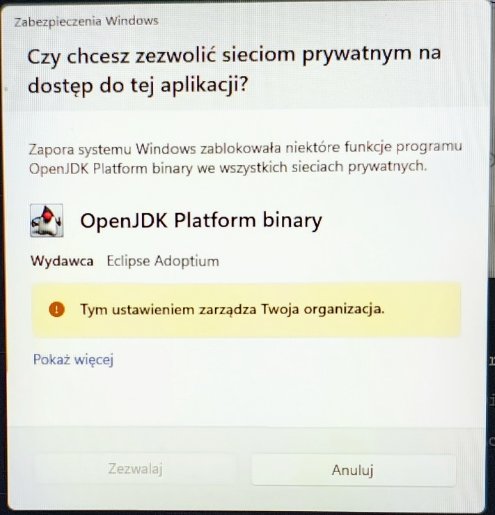
“Do you want to allow networks to access this app?”
On first start Windows may ask for network access. Click Allow. If the button is greyed out (company PC – “This setting is managed by your organization”), click Cancel and then Zezwól w zaporze in the program – it removes the block and adds its own rules.
Advanced: by hand in PowerShell (administrator)
New-NetFirewallRule -DisplayName "X6100 Remote - bramka" -Direction Inbound -Protocol TCP -LocalPort 50200 -RemoteAddress LocalSubnet,100.64.0.0/10 -Action Allow -Profile Any
New-NetFirewallRule -DisplayName "X6100 Remote - szukanie bramki" -Direction Inbound -Protocol UDP -LocalPort 50201 -RemoteAddress LocalSubnet -Action Allow -Profile Any
New-NetFirewallRule -DisplayName "X6100 Remote - dzwiek i widmo z radia" -Direction Inbound -Protocol UDP -LocalPort 50100,50102 -RemoteAddress LocalSubnet -Action Allow -Profile Any
Tailscale on the gateway PC
- ✓ Tailscale połączony (100.x.y.z, name) – a phone with Tailscale on connects from anywhere.
- Tailscale nie jest zainstalowany (not installed) – Pobierz Tailscale opens the download page.
- Tailscale nie jest zalogowany (not signed in) – Zaloguj Tailscale, then Otwórz logowanie Tailscale.
Connecting from the phone
- At home: Przez bramkę → Znajdź bramkę → pick the PC → enter the code → Połącz przez bramkę.
- Away: Tailscale on in the phone → Połącz przez bramkę. The app remembers the PC's Tailscale address after the first connection at home; you can also type it (100.x.y.z from the gateway screen).