USER MANUAL · TJ1GD REMOTE X6100
Raspberry Pi as the gateway
A small Raspberry Pi sits next to the radio, uses little power and runs all the time. Write the ready-made card, power it up – set the rest from the phone.
What you need
- Raspberry Pi 5 (tested) or Raspberry Pi 4.
- The official power supply (Pi 5: 27 W USB-C).
- A microSD card, 16 GB or larger, and a card reader.
- A network cable to the router (recommended) or Wi-Fi.
- Raspberry Pi Imager – raspberrypi.com/software.
- The card image
x6100-bramka-pi.img.xz– Downloads.
Writing the card
- Insert the card and start Raspberry Pi Imager.
- Device: Raspberry Pi 5 (or 4).
- Operating system: scroll to the bottom, choose Use custom and select
x6100-bramka-pi.img.xz(don't unpack it). - Storage: the microSD card. Everything on it will be erased.
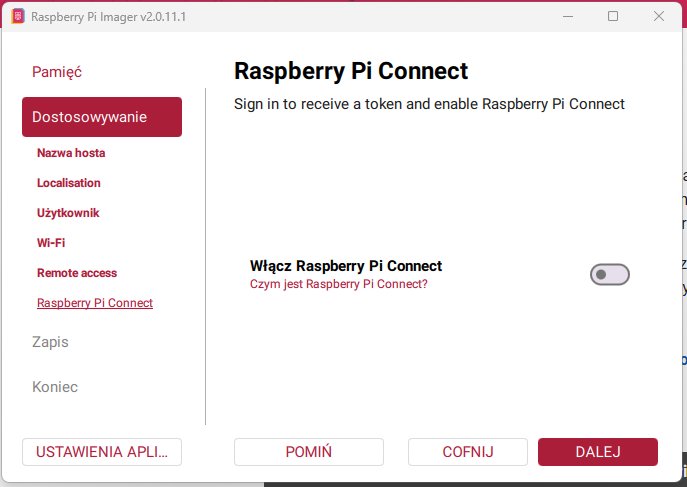
- If Imager offers customisation, you may set Wi-Fi, a user and SSH. It is optional – with a custom image Imager often doesn't offer it.
- Write and wait until done. If Windows offers to format the card – click Cancel.
Wi-Fi instead of a cable (optional)
After writing, the computer shows a bootfs drive with the file x6100-bramka.txt. Open it in Notepad:
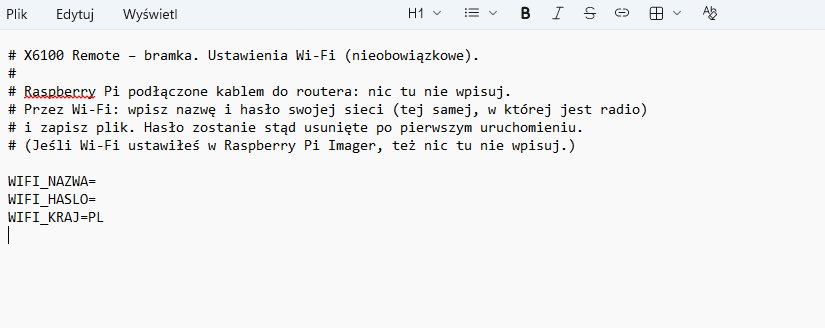
WIFI_NAZWA=MyNetwork
WIFI_HASLO=wifi-password
WIFI_KRAJ=PL
SSH_HASLO=
- Cable to the router: leave it empty.
- Wi-Fi:
WIFI_NAZWA= network name,WIFI_HASLO= password,WIFI_KRAJ= your two-letter country code (e.g. GB, DE, US). The password is removed from the card after the first start. - SSH_HASLO (service): set a password if you want service access to the Pi (user
bramka). Usually not needed.
Save the file and eject the card safely.
First start
- Put the card in the Pi, connect the network cable (if used), and power last.
- Wait about 10 minutes. The Pi installs the gateway and Tailscale by itself – it needs internet for that.
- The radio must be on and on the same network.
Setting up from the phone
- Phone on home Wi-Fi → Przez bramkę → Znajdź bramkę.
- Click x6100-bramka … nowa, do konfiguracji, enter Hasło SSH radia (root) (already changed – not the factory 123) → Zapisz i połącz.
- Write down the gateway code shown in the window.
- Połącz bramkę z Tailscale → Otwórz logowanie Tailscale → sign in with your Tailscale account.
Details and screenshots: Through a gateway and Tailscale.
Troubleshooting
- “Znajdź bramkę” finds nothing after 15 minutes – power the Pi off, put the card in a computer and open
x6100-log.txton the bootfs drive. The Pi writes the installation log and gateway state there at every start. Send this file if you need help. - No internet at first start – the installation retries every 30 s until internet is available.
- Wi-Fi doesn't work – check name and password in
x6100-bramka.txt(case matters) or use a cable. - The radio changed its address – the gateway finds it again on Połącz ponownie.
Updating
Install a new gateway version by writing the card with the new image. Remove the old x6100-bramka from the Tailscale device list first. Afterwards set the gateway up again from the phone (radio SSH password, Tailscale sign-in).
AdvancedThe gateway can also be installed on your own Raspberry Pi OS: copy
x6100-gateway.jar, install-gateway.sh and x6100-boot.sh to the Pi and run sudo bash install-gateway.sh. Live log: journalctl -u x6100-gateway -f.