USER MANUAL · TJ1GD REMOTE X6100
Through a gateway and Tailscale
The gateway is a device next to the radio – a Raspberry Pi or a Windows PC. It connects to the radio at home, and you connect to the gateway: over Wi-Fi at home, over Tailscale when away.
How it works
- The gateway stores the radio's address and SSH password – in the app you enter only the gateway code.
- One device at a time. A new connection takes the radio over from the previous one.
- One minute after the last device disconnects, the gateway releases the radio.
- Safety: if the connection breaks while transmitting, the gateway stops transmitting within 1.5 s.
123 and change it with Zmień hasło radia (how). Give the gateway the new password. If you change the password later, enter it again in Konfiguracja bramki… (phone) or on the gateway mode screen (Windows) – otherwise the gateway cannot reach the radio.Setting up a gateway: Raspberry Pi or Windows PC.
What is Tailscale
Tailscale is a free app (Personal plan) that joins your devices into a private network – as if they were all at home. No port forwarding on the router, no public IP address. Each device gets a fixed address like 100.x.y.z.
The main rule: all devices (phone, PC, gateway) must be signed in to the same Tailscale account.
Creating the account
- Go to tailscale.com and click Get started.
- Sign in with a Google, Microsoft, Apple or GitHub account (Tailscale has no separate passwords). Choose the free Personal plan.
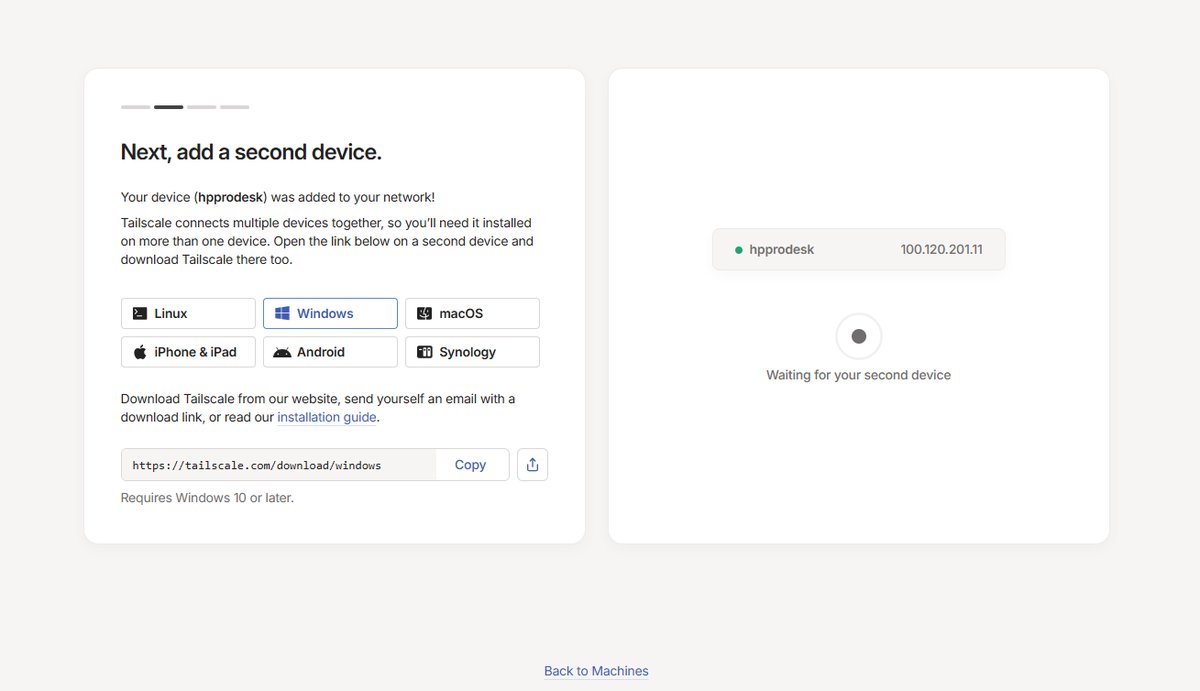
- Tailscale asks you to add your first device – you can install it on the phone or PC right away.
On the phone
- Install Tailscale from Google Play.
- Open it, choose Log in and sign in with the same account.
- Allow the VPN connection. While Tailscale runs, a key icon shows in the status bar.
On a Windows PC
Needed only if the PC is the gateway, or if you want to connect from a laptop away from home. Download from tailscale.com/download/windows, install and sign in with the same account. Tailscale starts with Windows (icon in the tray next to the clock).
Raspberry Pi
Nothing to install on the Pi – you sign the gateway in to Tailscale from the TJ1GD Remote X6100 app (see below).
When Tailscale must be on
| Device | At home | Away |
|---|---|---|
| Gateway (Pi / PC) | Always on – automatic on the Pi; on Windows it starts with the system. | |
| Phone / laptop | Not needed (may be on) | Must be on |
Device list
login.tailscale.com/admin/machines lists all devices with their 100.x.y.z addresses and state (Connected). Before writing a new gateway card, remove the old x6100-bramka there (… → Remove), otherwise the new one becomes x6100-bramka-1.
First connection to the gateway (at home)
- Phone on home Wi-Fi. In the app choose Przez bramkę (through gateway).
- Click Znajdź bramkę (find gateway). A list “Znalezione bramki” appears, e.g. x6100-bramka 192.168.0.245 – nowa, do konfiguracji · radio 192.168.0.220 (new, to be set up). Click it.
- For a new gateway a setup window opens. Enter only Hasło SSH radia (root) and click Zapisz i połącz (save and connect). The gateway finds the radio on the network by itself.
- The window shows the gateway code (e.g. 459036). The app remembers it – write it down for a second phone or PC.
- After a moment the state turns to green READY.
If the gateway is already set up (e.g. from another phone), pick it from the list, enter Kod bramki (gateway code) and click Połącz przez bramkę.
Signing the gateway in to Tailscale (once)
For a Raspberry Pi gateway you do this from the app. A Windows PC is signed in in the Tailscale app on that PC (see above) – you can skip this step then.
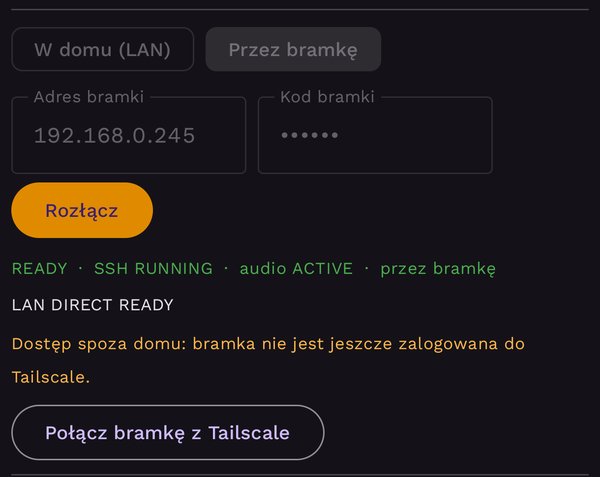
- Connect to the gateway at home. Under the status line: “Dostęp spoza domu: bramka nie jest jeszcze zalogowana do Tailscale.” (remote access: gateway not signed in yet).
- Click Połącz bramkę z Tailscale. After a few seconds the button changes to Otwórz logowanie Tailscale (open Tailscale sign-in).
- Click it – the Tailscale page opens. Sign in with the same account and approve the device (Connect).
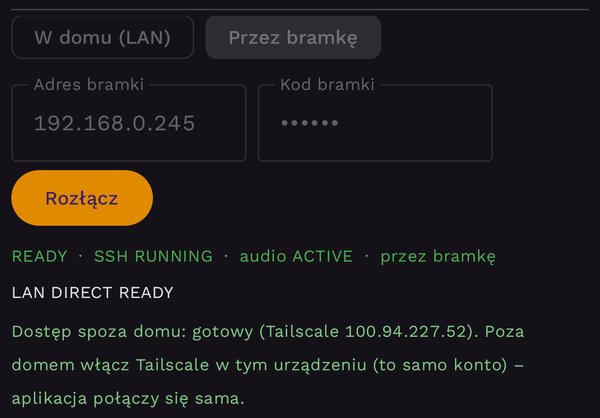
- Back in the app, within a few seconds you'll see green “Dostęp spoza domu: gotowy (Tailscale 100.x.y.z)” (remote access ready). The app remembers the address.
Connecting away from home
- Turn Tailscale on in the phone (key icon in the status bar).
- In TJ1GD Remote X6100 click Połącz przez bramkę – change nothing.
The app tries the home address first and, when it doesn't answer, connects through the remembered Tailscale address. You can also type the gateway's 100.x.y.z address in Adres bramki.
Problems
| Message | What to do |
|---|---|
| “Brak połączenia z bramką … – poza domem sprawdź, czy Tailscale w tym urządzeniu jest włączony” (no connection – away from home check Tailscale is on) | Turn on Tailscale in the phone. Check in the Tailscale device list that the gateway is Connected. |
| “Zły kod bramki” (wrong gateway code) | Enter the code given when the gateway was set up. |
| “Bramka nieskonfigurowana…” (gateway not set up) | Click Konfiguracja bramki… and enter the radio's SSH password. |
| “Bramka nie znalazła radia w sieci…” (radio not found) | Switch the radio on and check it is on the same network as the gateway, or enter its address in Więcej ustawień…. |
| “Nie znaleziono bramki w tej sieci” (no gateway on this network) | The gateway must be on and on the same network as the phone. Away from home enter its Tailscale address. |
| “Na bramce nie ma Tailscale…” (no Tailscale on the gateway) | On Windows install Tailscale on the gateway PC. |
| “Bramka nie mogła rozpocząć logowania: …” (could not start sign-in) | Raspberry Pi: write the latest card image. Temporary fix: sudo tailscale login on the Pi. |